
Call and answer
On your loved one's device: call someone
-
Bring up the contacts
If the device shows a family photo, touch the screen: the photos of familiar people appear. When the device shows the clock, the photos are already visible at the bottom of the screen.
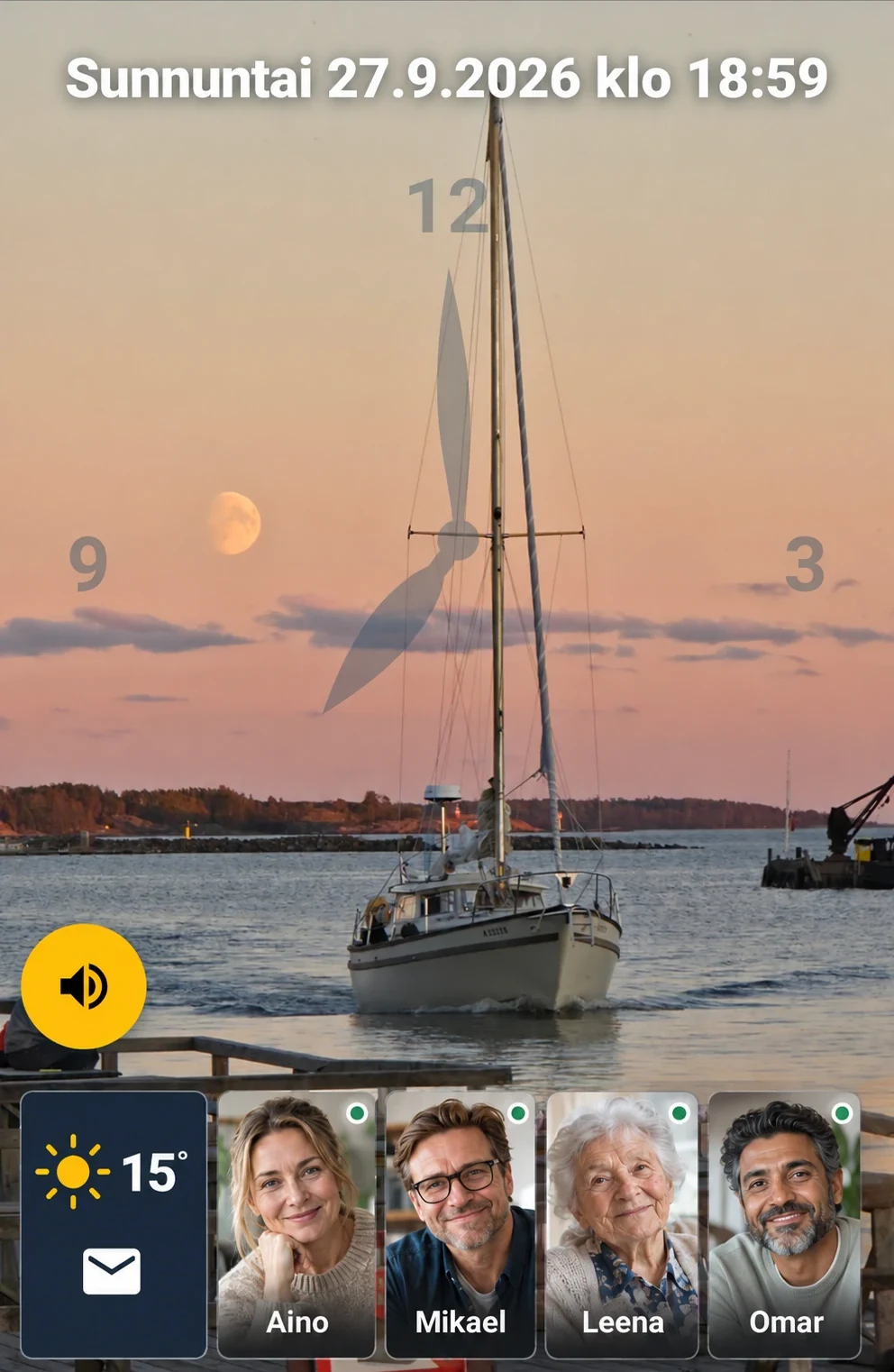
Touch the screen and choose a familiar person from the photos that appear. -
Find the right person
If not all the photos fit on the screen, swipe the row of photos sideways with your finger. A green dot in the corner of a photo shows that the person is signed in to the service. It does not tell you whether they are at their device right now.
-
Tap the photo
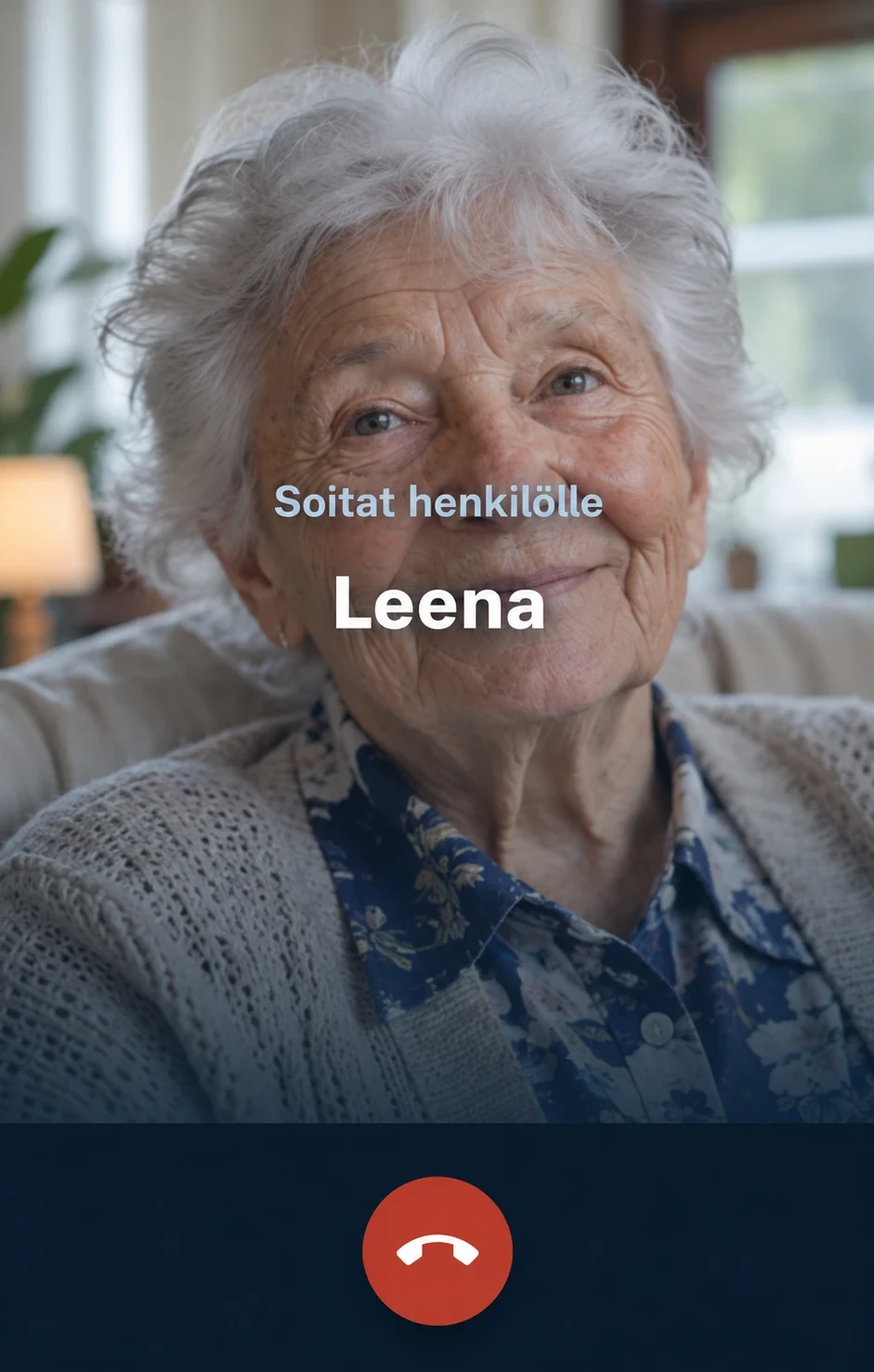
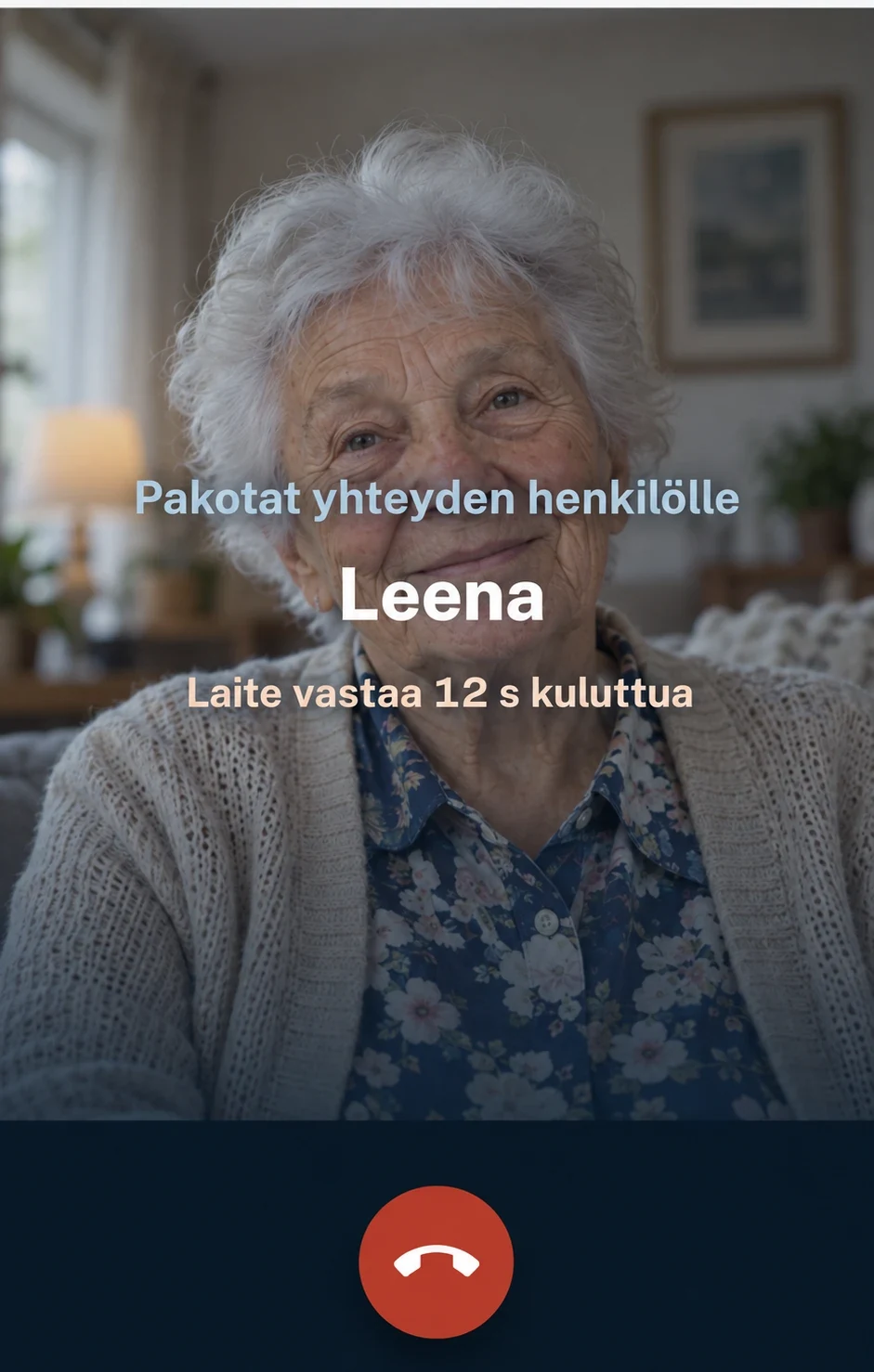
Tap the photo of the person you want to call. The screen shows the text You are calling and their name. If you want to cancel the call, press the red End button.
-
Talk and hang up
When the other person answers, you can see each other. The yellow More button holds the volume and the microphone. The call ends with the red End button.
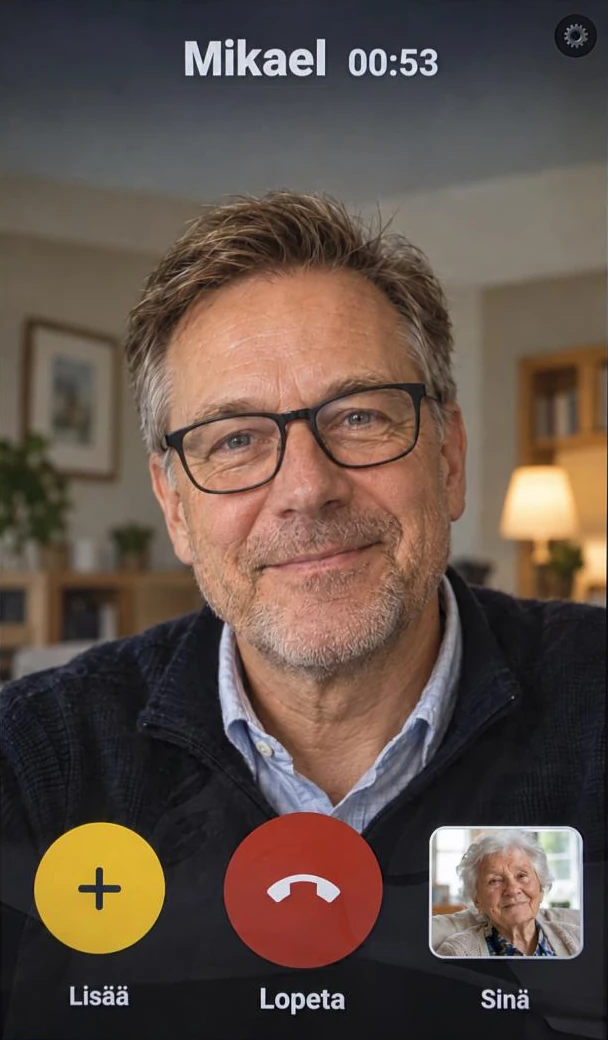
Catch up face to face. -
If the other person doesn't answer
If the recipient has voicemail enabled, the device tells you that they did not answer and offers to let you leave a message. Press Leave a message and then Record. When you are finished, press Done, watch the message, press Approve and finally Send. If you don't want to leave a message, press Not now.
On your loved one's device: answer a call
-
The device rings
When someone calls, the device rings and the screen shows the caller's photo, name and the words is calling.
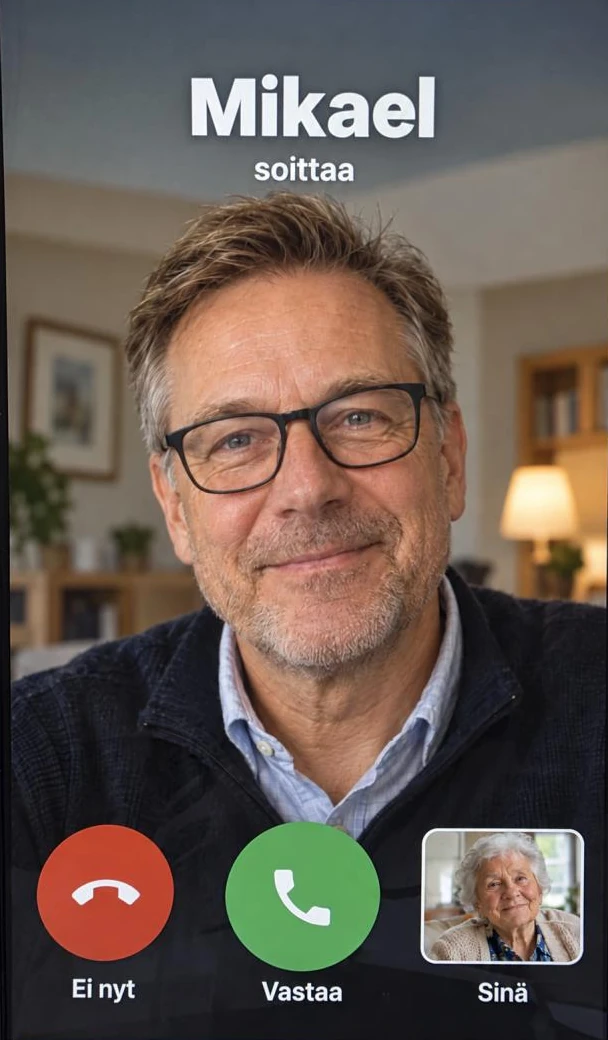
Answer an incoming call. -
Press Answer
Press the green Answer button. If you don't want to answer now, press the red Not now.
-
Watch messages
When someone has left you a message, the notice New message from and the sender's name appear on the screen. Press Watch and the messages open. You leave the message screen by pressing Close.
On your own device
- Call your loved one: open Vieressa and press the big Call button on Home. The screen shows You are calling until your loved one answers.
- Group call: on Home, under Team, press Group call, choose the participants and press Start conference. Up to four people fit in the call, including you.
- A message when there's no answer: if the call ends unanswered (No answer or Rejected) and your loved one has voicemail enabled, you can leave a video or voice message or send a photo. A message can be up to 60 seconds long.
- When your loved one calls you: answer with the green button or decline with the red one. In the app (Android, iPhone) the call also rings on the locked screen; in a browser only while Vieressa is open.
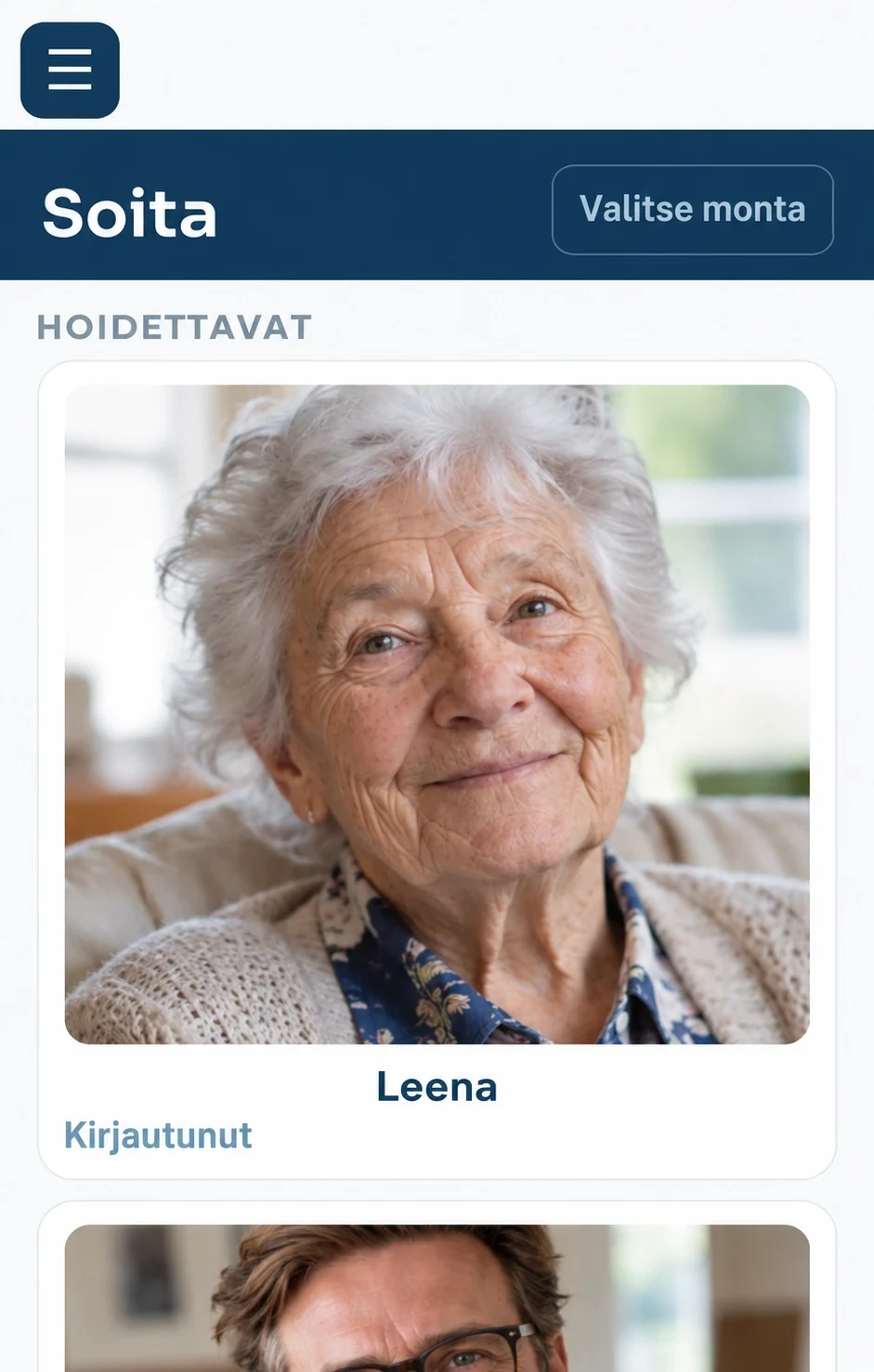
The first test call together
-
You call first
Call your loved one's device from your own app and let them answer by pressing Answer.
-
Let your loved one call
Ask them to bring up the contacts and call you by tapping your photo. Repeat as needed until both directions feel familiar.