How to set up Vieressa
You prepare the service and your loved one's device. After that, they can call familiar people and answer calls from a clear screen. Start by checking the device and the network connection, and finish by making the first call together.
What you need
For your loved one you need a tablet or smartphone, an internet connection and a place where the device is easy to use and charge. The app runs on Android devices (Android 12 or later) and on iPhone and iPad (iOS 15 or later). A large screen (at least 10 inches recommended) makes it easier to use, because faces and buttons appear large on it. A smartphone works too.
You use the service on your own device: with the Vieressa app on an Android phone or an iPhone, or in the Chrome or Edge browser on a computer.
Four steps to get started
-
Log in and add your loved one
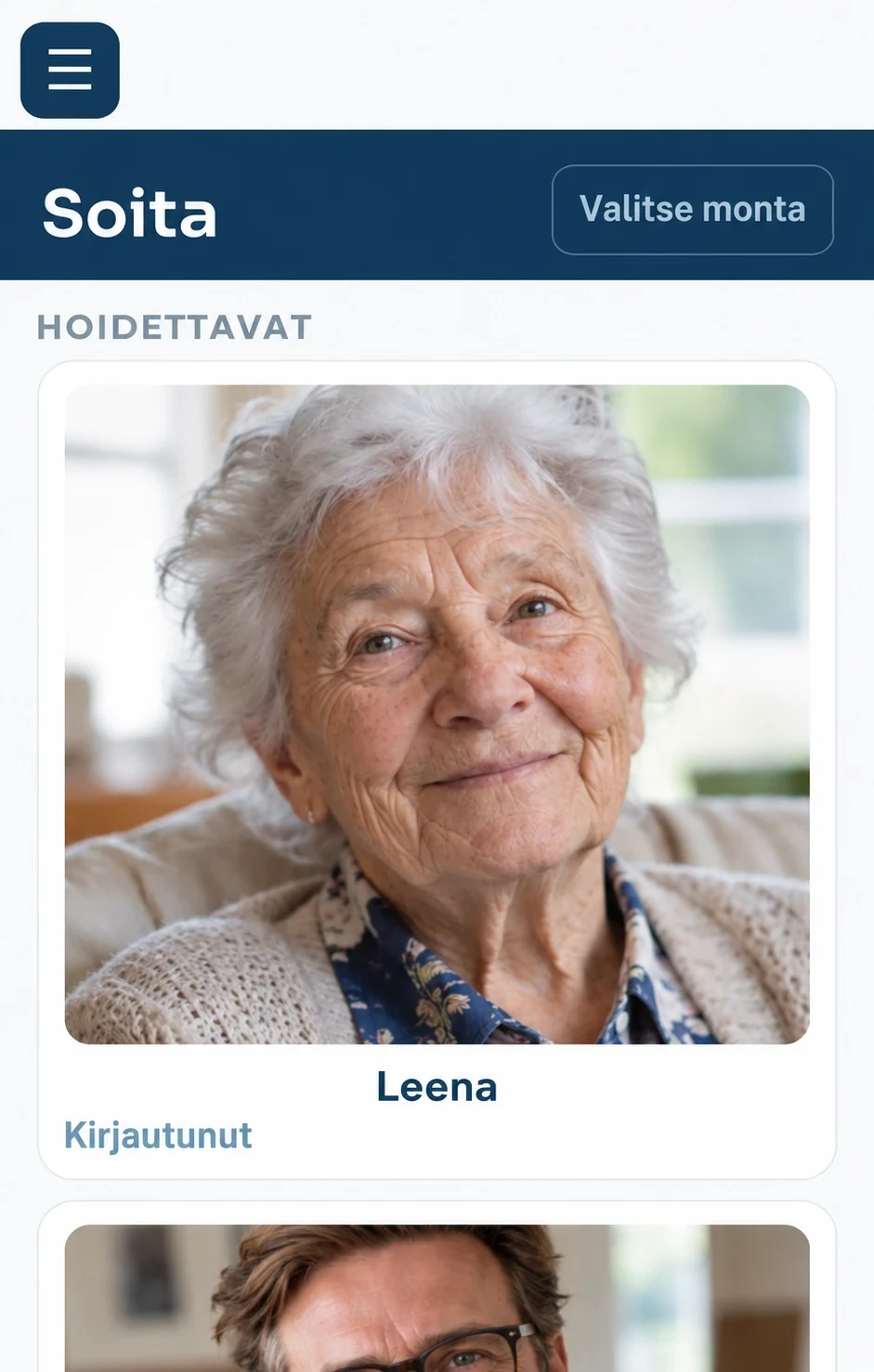
Request an invitation and we will email you a link for creating your account. Once you have logged in, you add your loved one to the service. At the same time you get an activation code for connecting their device to the service.
-
Prepare your loved one's device
The Vieressa app is installed on your loved one's device; you receive the app and the installation guide with your invitation. The device signs in with the activation code, and your loved one does not need a password. Allow the camera, microphone and notifications so that calls ring even when the screen is locked.
-
Bring the family along
Add a profile photo for yourself so that your loved one recognises you from your photo. Invite other family members, friends or a caregiver by email from the Family page; everyone uses the service with their own account.
-
Make the first call together
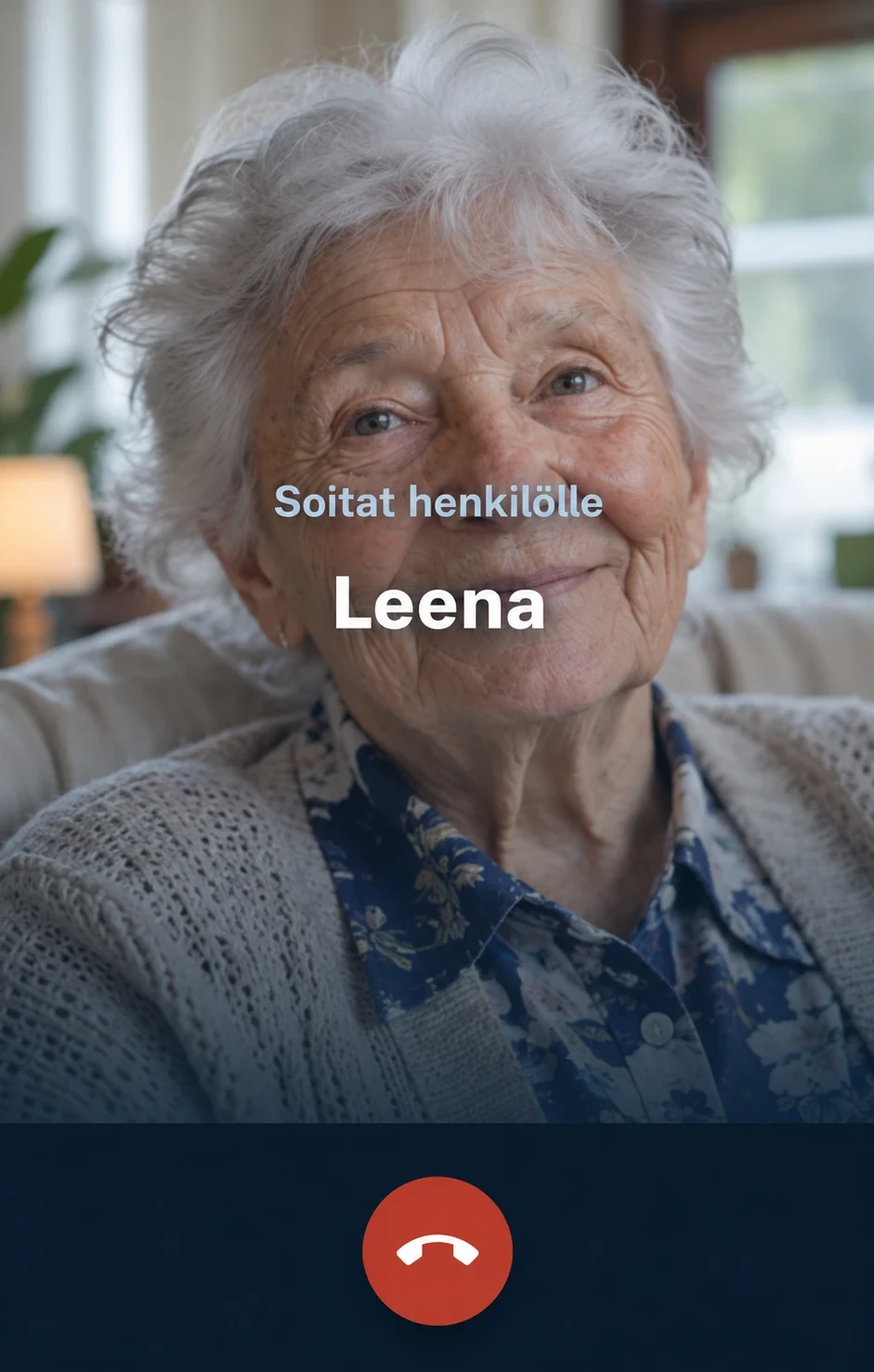
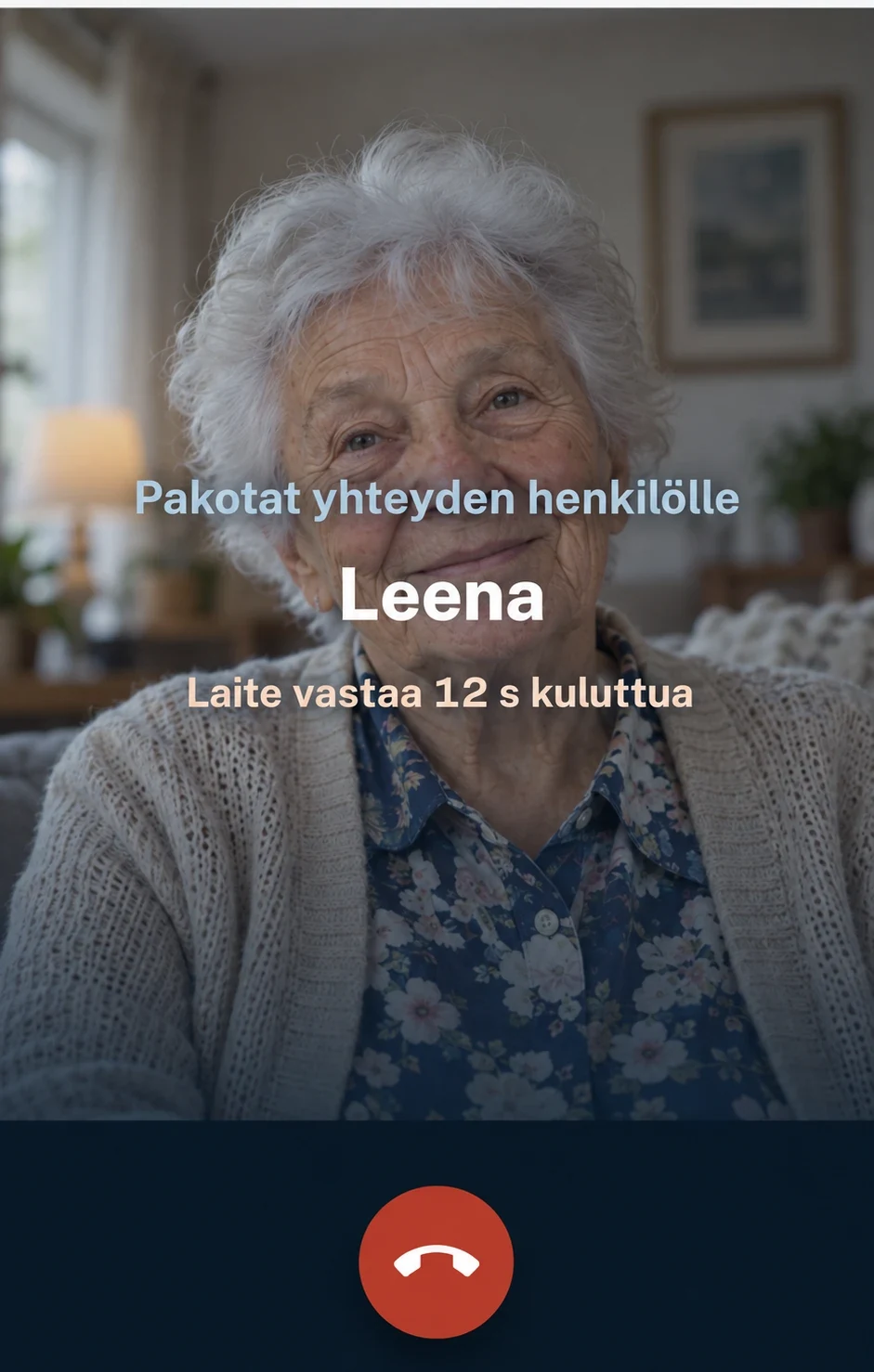
First you call your loved one's device and let them answer. Then ask them to call you. Leave the device charged in a place where it can be heard, for example on a stand with the charger connected.
Calling and answering
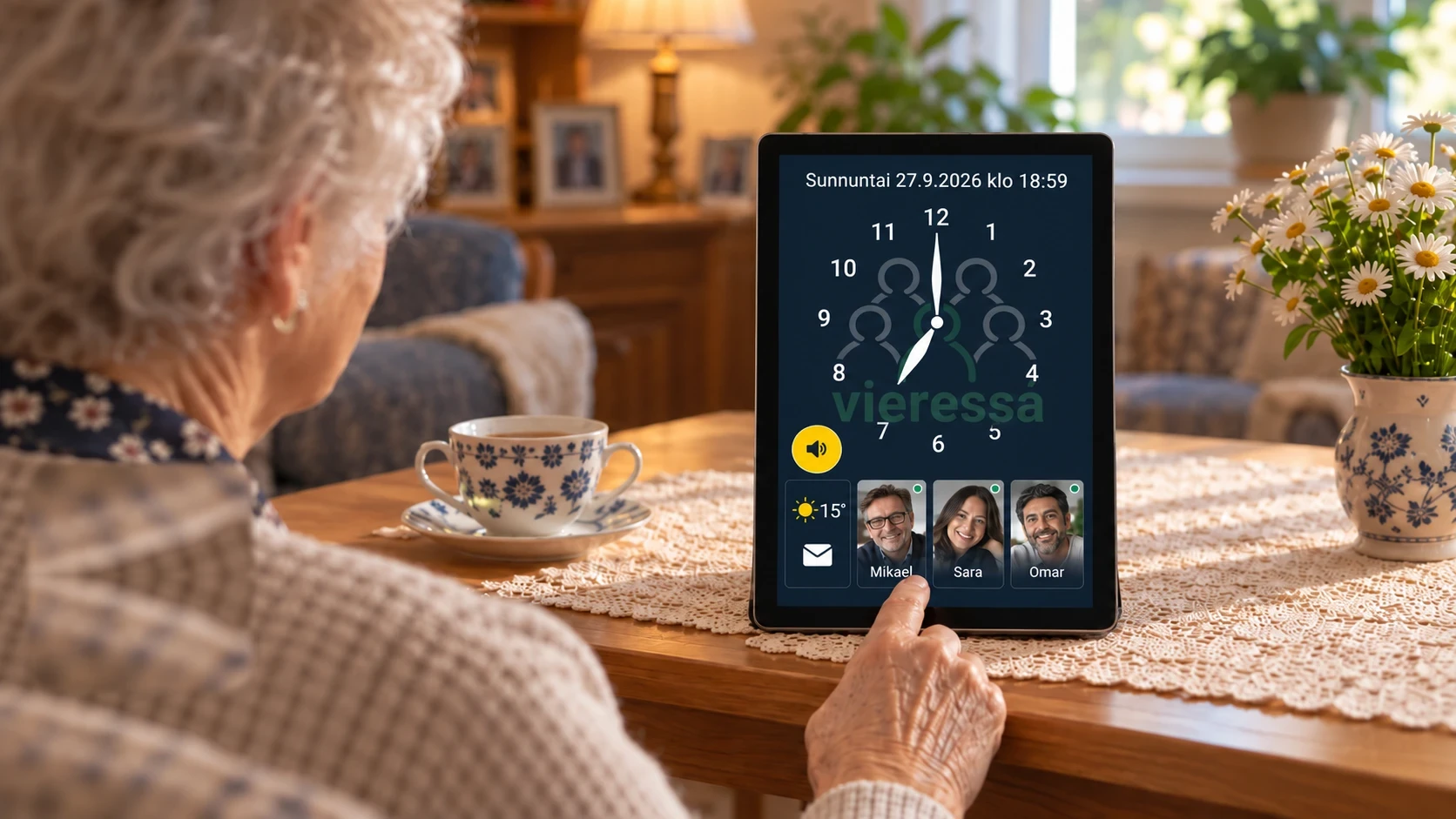
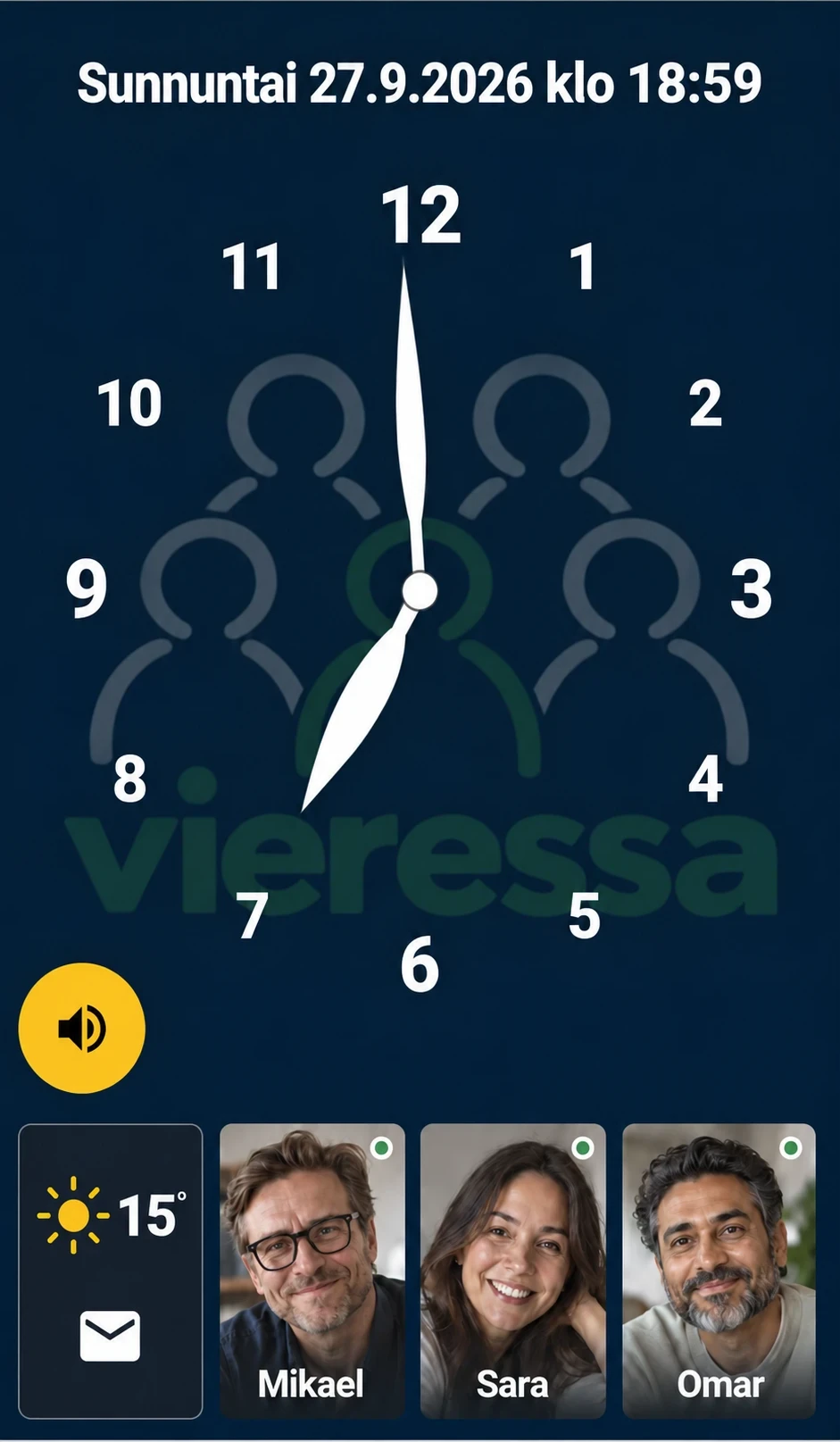
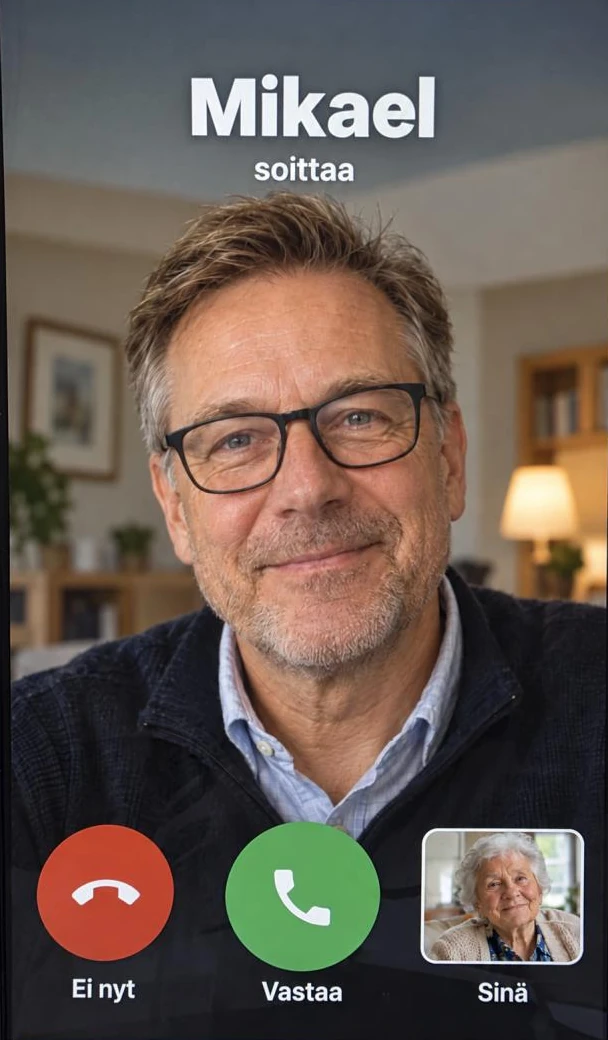
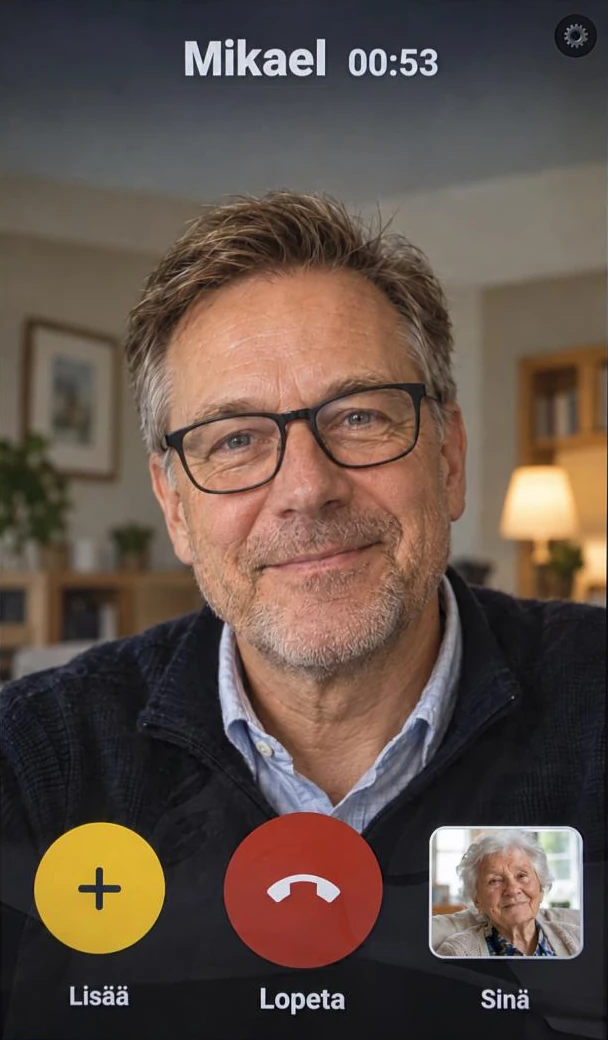
Once the family circle and your loved one's device are ready, they bring up the contacts by touching the screen. Then they call by tapping the photo of the person they choose. An incoming call is answered with a clear Answer button. Photos and messages bring greetings between calls too.
On your phone